Razer USB 4 Dock Review: Stable 100W Hub Without the Thunderbolt PremiumRazer USB 4 Dock Review: Stable 100W Hub Without the Thunderbolt PremiumRazer USB 4 Dock Review: Stable 100W Hub Without the Thunderbolt PremiumRazer USB 4 Dock Review: Stable 100W Hub Without the Thunderbolt Premium
October 12, 2026
Razer's USB 4 Dock packs 14 ports and sustained 100W laptop charging into a 22mm-thin aluminum body. After running it as the hub for a full desk, I think the missing Thunderbolt badge matters much less than the price gap suggests.
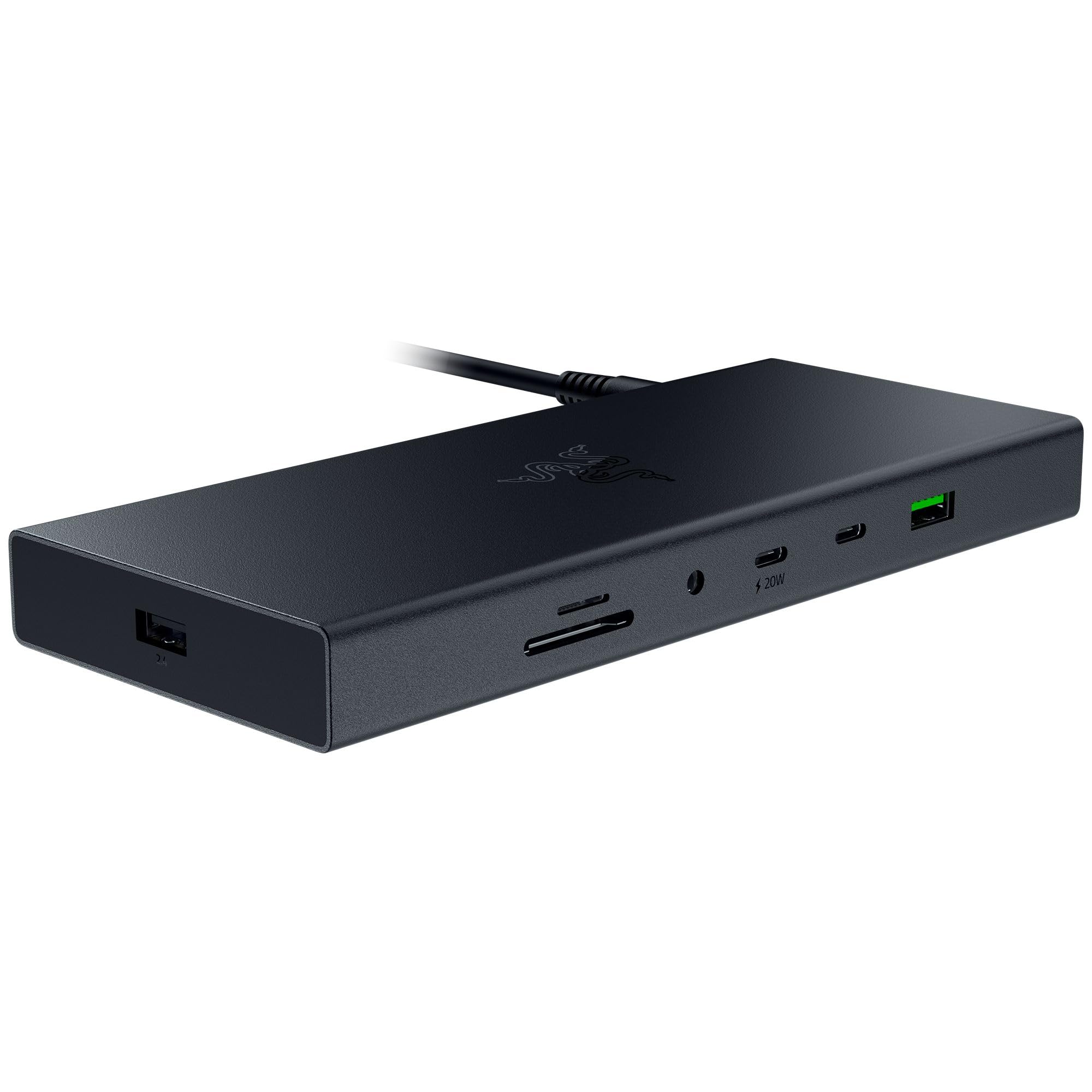
Razer's USB 4 Dock packs 14 ports and sustained 100W laptop charging into a 22mm-thin aluminum body. After running it as the hub for a full desk, I think the missing Thunderbolt badge matters much less than the price gap suggests. It costs less than many of the most commonly recommended Thunderbolt 4 docks, and it has a trick most docks lack: a dedicated USB-A port built for 2.4GHz wireless dongles. If you've ever had a wireless mouse stutter next to a crowded USB hub, you'll see why that matters.
Quick Verdict
Buy it if your laptop has a USB4 or Thunderbolt port and you want a lot of connectivity without paying the Thunderbolt premium. In our real-world use, it stayed stable through a heavy, simultaneous multi-device load, and we never saw it stumble. The 100W sustained charging and the aluminum build are the strongest reasons to buy. The trade-offs are the missing Thunderbolt certification and the absence of a lock slot or mounting options. Overall rating: 4.5/5.
Rating and Pros/Cons

| Aspect | Rating |
|---|---|
| Performance | 4.5/5 |
| Build | 4.5/5 |
| Ports | 4.5/5 |
| Features | 4/5 |
| Value | 4.5/5 |
| Overall | 4.5/5 |
Pros
- Sustained 100W Power Delivery to the laptop, where many Thunderbolt 4 docks cap at 96W
- Dedicated side USB-A 2.0 port for 2.4GHz wireless dongles, which kept our wireless mouse steady
- CNC-milled anodized aluminum body, only 22mm thin, in black or silver
- UHS-II SD and microSD readers plus a 3.5mm jack with 7.1 THX surround
- Priced below many of the most commonly recommended Thunderbolt 4 docks, including Razer's own
Cons
- USB4 carries no Thunderbolt brand or certification guarantee
- No lock slot and no mounting options, unlike the Kensington Thunderbolt 4 Dock
- The 180W power brick is larger than the dock itself
Specs at a Glance
| Specification | Detail |
|---|---|
| Price | Below many Thunderbolt 4 docks; see the live Amazon listing |
| Uplink | USB Type-C 4.0 with 100W Power Delivery |
| Port count | 14-in-1 (13 additional ports) |
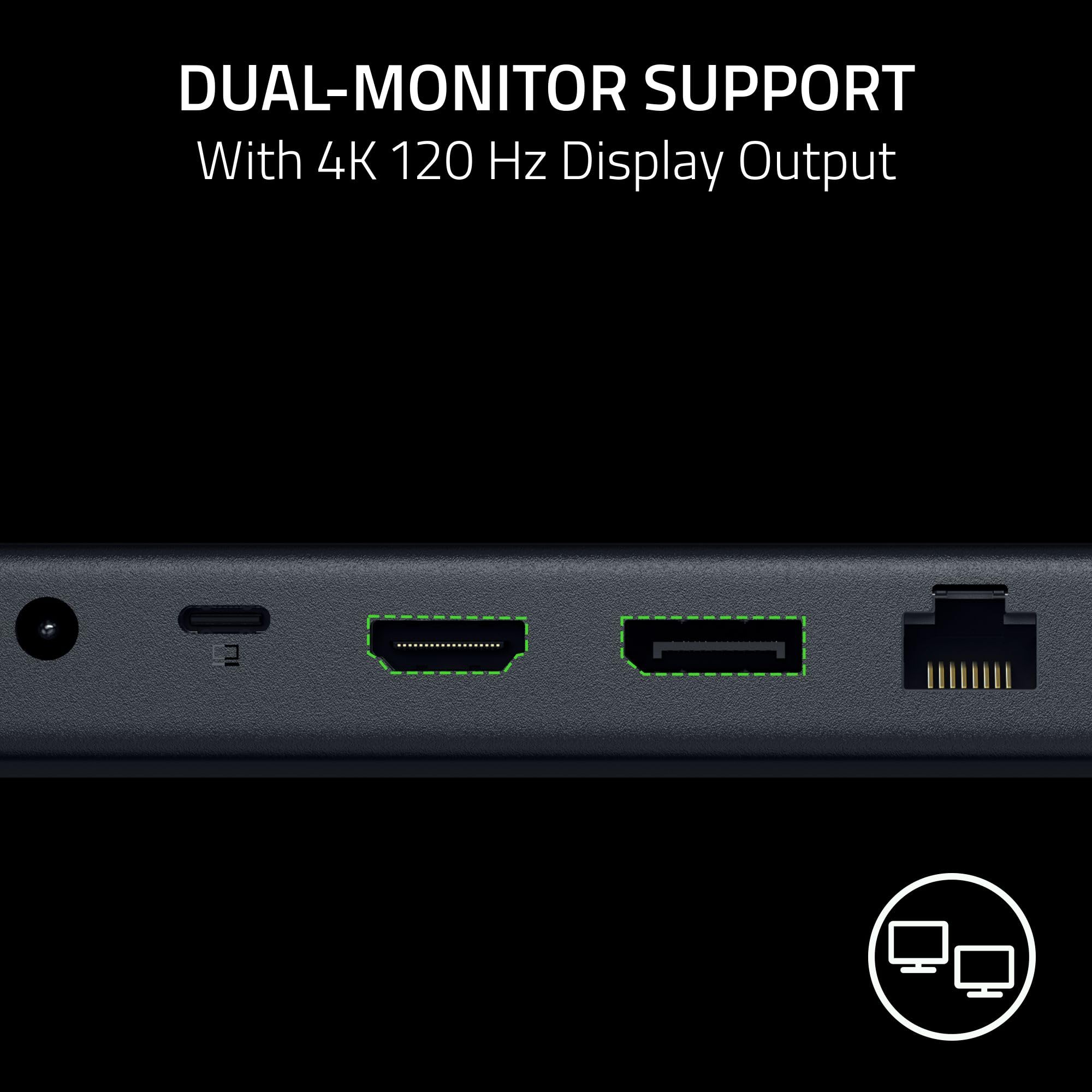
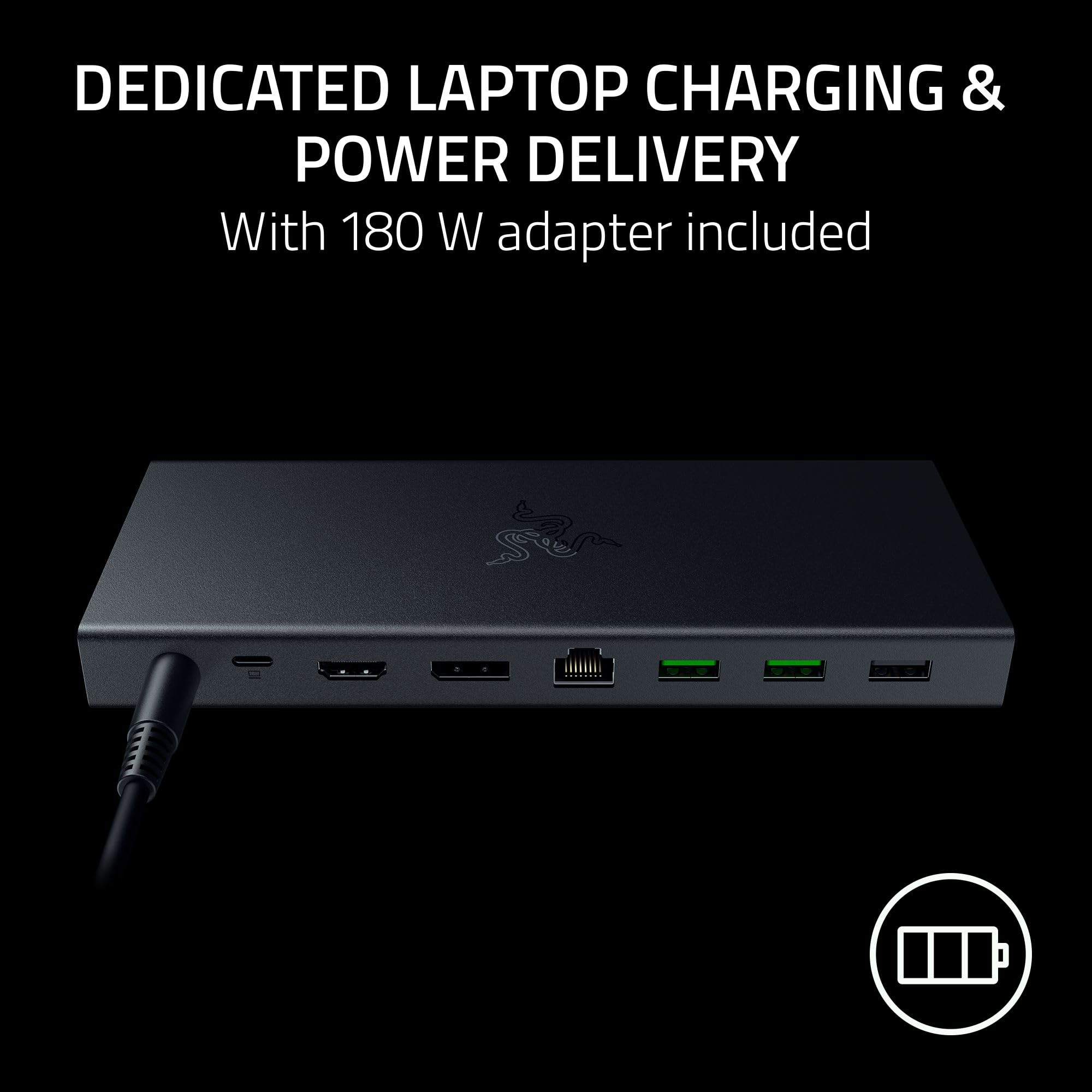
| Rear ports | 180W DC power, HDMI 2.1, DisplayPort 1.4, Gigabit Ethernet (RJ45), 2x USB-A 3.2 Gen 2, 1x USB-A 2.0 |
| Front ports | microSD (UHS-II), SD (UHS-II), 3.5mm audio with 7.1 THX surround, USB-C 3.2 Gen 2 with 20W PD, USB-C 3.2 Gen 2, USB-A 3.2 Gen 2 |
| Side port | USB-A 2.0 dedicated to 2.4GHz wireless dongles |
| Tested display output | 1440p/180Hz on one monitor during intensive gaming |
| Dimensions | 190 x 80 x 22mm (7.49 x 3.15 x 0.85in) |
| Weight | 1.11kg (2.44lbs) |
| Material | CNC-milled aluminum, anodized finish |
| Colors | Black or silver |
| Power | 180W DC adapter |
| In the box | Dock, 1m braided USB-C 4.0 cable, 180W power adapter and cable |
| Warranty | Razer standard 1-year warranty |
Build & Ergonomics
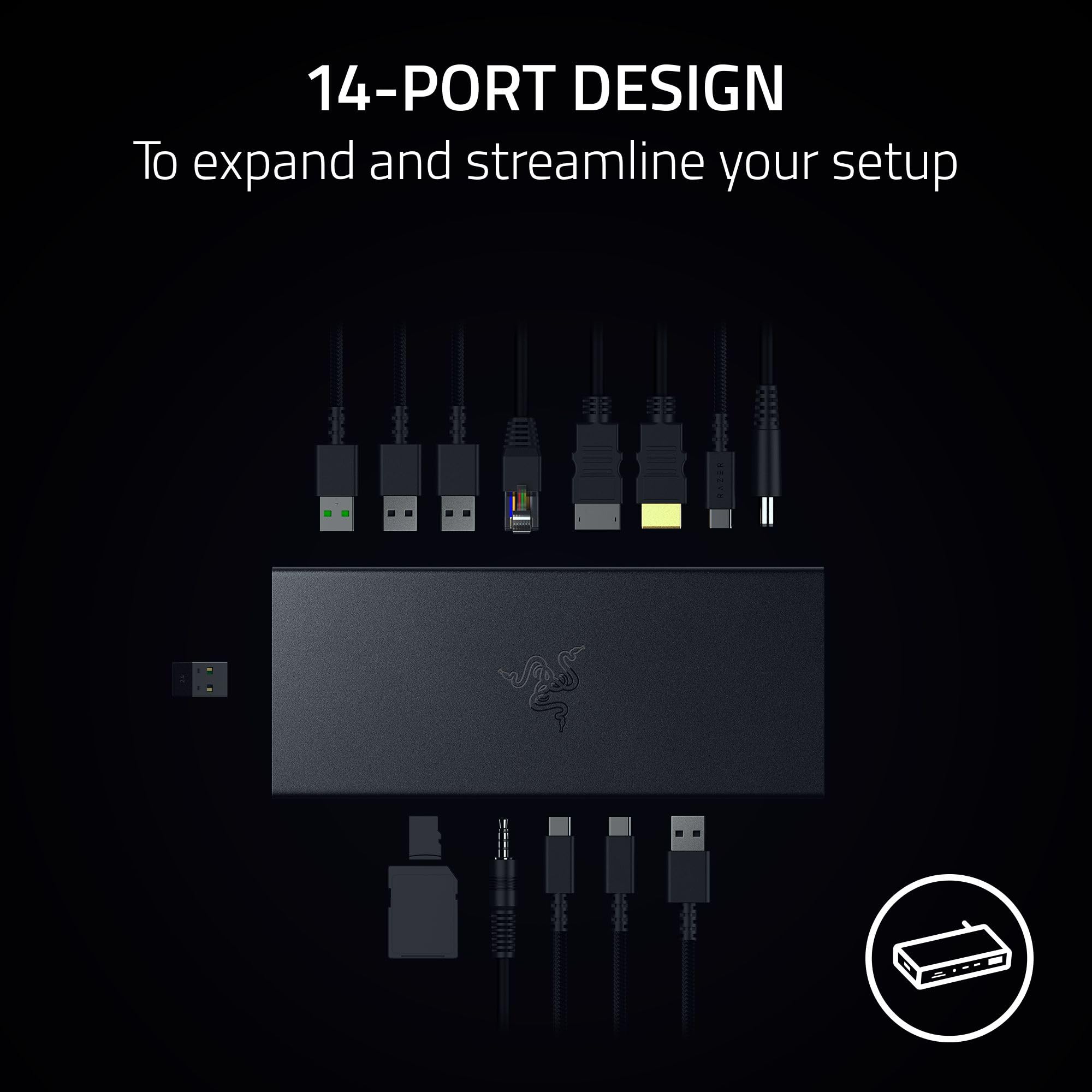
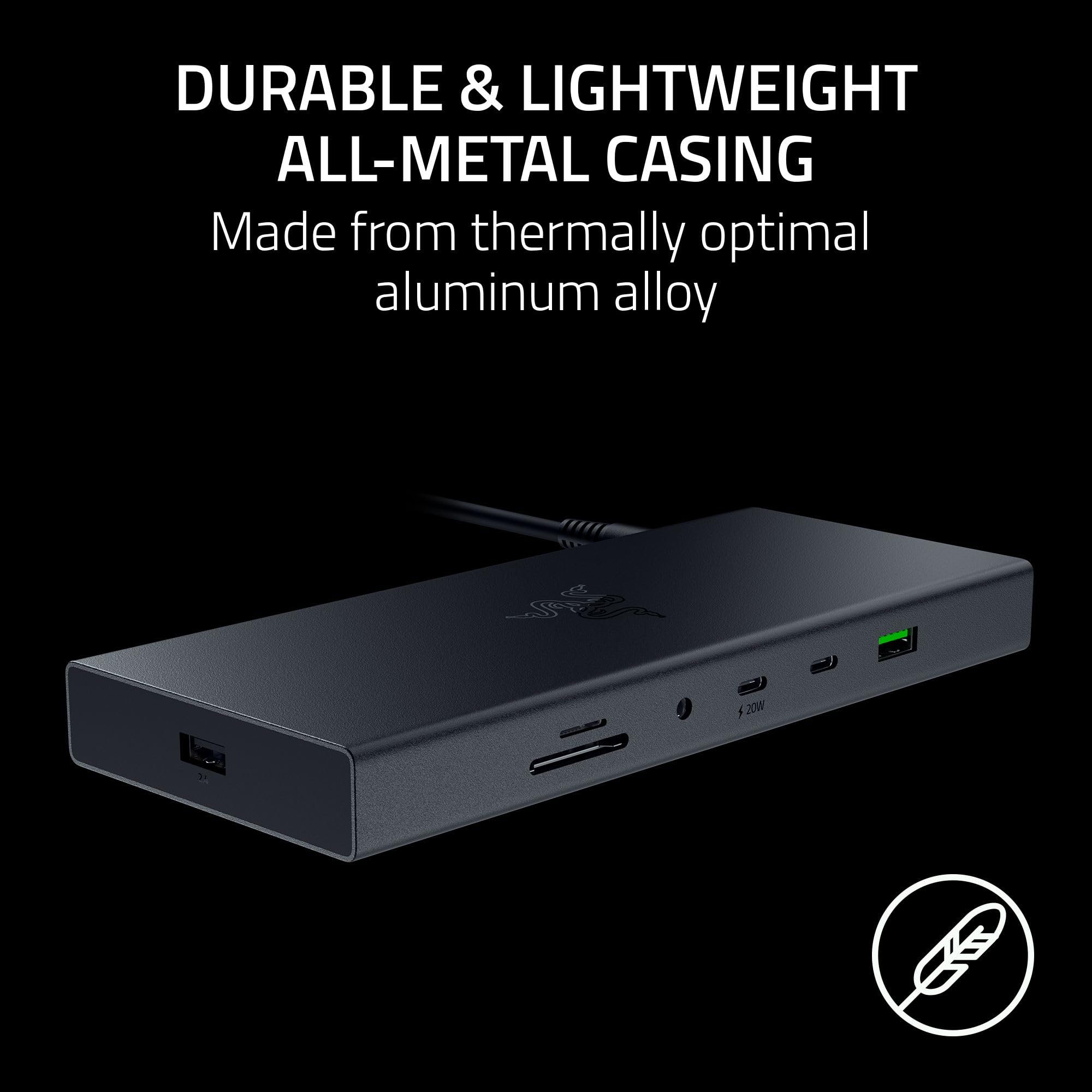
The first thing you notice is that this dock feels like a premium object. The body is CNC-milled aluminum with an anodized finish, offered in black or silver. At 22mm thin, it slides under a monitor stand or beside a laptop without taking over the desk, and its 190 x 80mm footprint is small for 14 ports. At 1.11kg, it has real heft, and that weight is part of why it feels so solid in the hand. We'd call the build quality exceptional for a dock in this tier.
Port layout is where the engineering shows. The ports are neatly lined up and fit snugly, with enough spacing between them that we could use all 14 at once without crowding one plug against another. That sounds like a low bar, but plenty of docks fail it as soon as you plug in a chunky flash drive or a wide SD adapter. The USB-A 3.2 Gen 2 ports are green, which makes it easy to tell the faster ports from the USB 2.0 ones at a glance, and the 20W USB-C port on the front is labeled so you know where to plug your phone.
A power button and an LED indicator sit on the side. It's a small touch, but being able to cut the dock off without pulling a cable is welcome.
The 180W power brick is the one awkward piece of hardware: it is larger than the dock itself. Its long cable gives you flexibility in where to hide it, but plan desk space for a brick that outsizes the slim aluminum slab it feeds.
The bigger physical omission is that there is no lock slot and no mounting option. If you work in a shared office or want to hang the dock under a desk, the Kensington Thunderbolt 4 Dock offers both and the Razer does not.
Daily Performance
To see whether the dock could actually hold together, we didn't test it one device at a time. We ran everything at once: an ASUS ProArt P16 laptop, a Xiaomi G Pro 27i Mini LED monitor, a Razer DeathAdder V3 HyperSpeed wireless mouse, a Razer Barracuda X Chroma headset, and a Razer Laptop Cooling Pad. On top of that we kept USB drives, external SSDs and SD cards connected, and charged a phone over the 20W USB-C port.
It never stumbled. Display output on the monitor was crisp, responsive and stable at 1440p/180Hz, even during intensive gaming. That's the scenario where an overloaded dock usually shows its weakness, with a flickering screen, a dropped signal or a stuttering input device. None of that appeared.
The dedicated dongle port earned its place. Our wireless mouse stayed free of any instability, and we credit the separate 2.4GHz port, which is designed to reduce wireless interference and latency. Wireless mice and keyboards are exactly the peripherals that suffer when a dongle sits in a busy port cluster. Giving the dongle its own spot on the side of the chassis is a smart solution, and it's the feature we'd point to first when someone asks why this dock is different.
Thermals were comfortable. Under full load the dock was warm to the touch but never close to hot. That matters beyond comfort, since a dock that runs too hot can turn flaky over a long session, with connections dropping at random. Across extended use we saw nothing like that, and the thermal management kept connections reliable.
We didn't run a lab-grade throughput, temperature or power-draw rig for this review, so this is a real-world assessment rather than a benchmark chart. What we can say is that the dock did everything we threw at it, simultaneously, without a hiccup.
Connectivity & Compatibility
The uplink is a single USB Type-C 4.0 connection with 100W Power Delivery, and the 100W is sustained. That's a real advantage over the many Thunderbolt 4 docks that cap at 96W. For a laptop with a hungry processor and a discrete GPU, a few extra watts of headroom can be the difference between charging while gaming and slowly draining the battery.
On the video side, the dock gives you one HDMI 2.1 port and one DisplayPort 1.4 port. We drove a single Mini LED monitor at 1440p/180Hz and it handled that high-refresh gaming display well. Wired networking comes from the Gigabit Ethernet port. Storage and cameras are covered by full-size SD and microSD readers, both UHS-II. Audio gets a 3.5mm jack with 7.1 THX surround.
The USB4 versus Thunderbolt question is the heart of the buying decision. USB4 doesn't require Intel licensing, which is why it's more common on AMD and Qualcomm machines. It works with most Thunderbolt docks and accessories, and it can be just as capable as Thunderbolt. What you give up is the Thunderbolt brand and its certification guarantee. With Thunderbolt, a certified badge tells you the port will behave a certain way. With USB4, you're trusting the laptop maker's implementation.
Day to day, the rest of the I/O is generous. Two USB-A 3.2 Gen 2 ports on the back and another on the front cover fast drives and SSDs. The front USB-C 3.2 Gen 2 ports handle accessories, and the 20W one tops up a phone while the rest of the desk keeps running. Older gear can plug into the USB-A 2.0 ports on the back and the side, though the side one is best kept for a wireless dongle.
Software & Customization
This is a hardware-first product. We evaluated it as a box of ports rather than a piece of software: connect the USB4 cable, plug in the power brick, and the devices on our desk were ready to use.
Customization lives at the hardware level. You choose between black and silver, you get a power button and LED indicator on the side, and you decide which wireless dongle goes in the dedicated 2.4GHz port. That last choice is the real personalization, and it is a good one for anyone with a wireless mouse, keyboard or headset receiver.
It also pairs naturally with the rest of the Razer lineup. The DeathAdder V3 HyperSpeed mouse, Barracuda X Chroma headset and Laptop Cooling Pad all worked together on one dock in our tests, and the layout suits a single-cable desk where you plug into the dock and walk away.
Value for Money
The Razer USB 4 Dock sits below many of the most commonly recommended Thunderbolt 4 docks, and it costs less than Razer's own Thunderbolt 4 Dock, so check the live Amazon listing for the current price. For that money you get a CNC-milled aluminum build, 14 ports, sustained 100W charging and Razer's standard 1-year warranty. It matches Thunderbolt 4 docks on features and performance in our testing while costing less. What you trade away is the Thunderbolt certification, a lock slot and mounting options.
Who Should (and Shouldn't) Buy This
Buy it if you own an AMD, Qualcomm or other USB4 laptop and want a well-built dock without paying the Thunderbolt premium. It's also an easy pick for desk-setup fans, anyone with a wireless mouse who has fought dongle interference, and anyone who wants plenty of ports in one tidy slab of aluminum.
Skip it if you need Thunderbolt certification, a lock slot or mounting hardware. In those cases the Kensington Thunderbolt 4 Dock is the better match.
Bottom Line
The Razer USB 4 Dock is a well-built, capable dock that undercuts Thunderbolt 4 on price while staying stable under a heavy multi-device load. It's held back only by the missing certification and the lack of mounting options. For most USB4 desk setups, it's an easy recommendation.
I've tested plenty of docks that promise everything and then drop a display mid-call. This one just worked, and the dedicated dongle port is the kind of thoughtful detail that makes a desk feel designed rather than assembled. If you can live without the Thunderbolt badge, I'd spend the savings elsewhere.
-- Theo Chan, Hardware Testing Director
*Disclosure: As an Amazon Associate, Revuzia earns from qualifying purchases. Prices and availability are accurate as of publication and may change.*